
Description
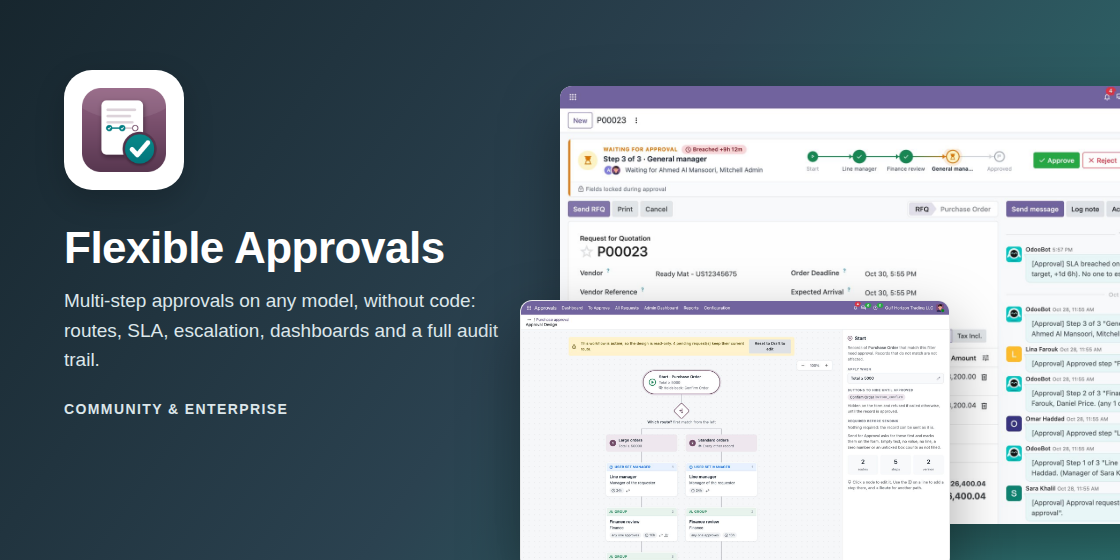
Flexible Approvals
Multi-step approvals on any model of any app, without code. Write the trigger as a filter, pick the buttons to hold
back, draw the route, and get SLAs, escalation, dashboards and a full audit trail.

One approval engine for your whole Odoo
No per-app modules and nothing hard-wired to amounts: the same engine approves purchase orders, quotations, vendor bills, expenses, time off or your own documents, each with its own rules.
Any model, any app
Purchase, sales, invoices, expenses, time off, CRM, inventory or your own custom models. No glue modules and no code.
The trigger is a filter
Write it like any Odoo filter: “Total above 5,000”, a partner, a category, a stage or a custom field.
Buttons held back
Pick the buttons to hold back, such as Confirm Order. They are hidden and refused, even when called through the API, until the record is approved.
Routes and steps
Different paths for different records, with steps for the manager, a record field, a group (any, quorum or all) or named users.
SLA and escalation
Every step has an SLA. Overdue steps escalate to the approver’s manager or send reminders automatically.
Dashboards and audit trail
Personal and company dashboards, reports, an Approval tab on every record and every event in the chatter.
From rule to decision in eight steps
Follow a purchase approval from its configuration to the dashboards. Each step shows the real screens.
Administrator
Say when approval is needed, and what it holds back
Pick the model, write the trigger as a normal filter and choose the buttons that stay hidden until the record is approved. Optionally list the fields that must be filled before sending, and set a note for the requester.
- ✓Trigger on any field of the record, with the full Odoo filter editor
- ✓Buttons to hold back are picked from the real buttons of the form
- ✓Setup hints warn about conflicts with built-in approvals, such as purchase double validation

Administrator
Draw the route on a visual designer
Routes are tried from left to right: the first one whose filter matches the record is used. Each route is a chain of steps, and each step decides who approves, how many must agree, its SLA and what may happen along the way.
- ✓Approvers: the user’s manager, a user field of the record, an approver group or specific users
- ✓Group steps: any one member, a quorum or everyone
- ✓Conditional steps, transfer, additional approvers, before and after callbacks, approve from email

Requester
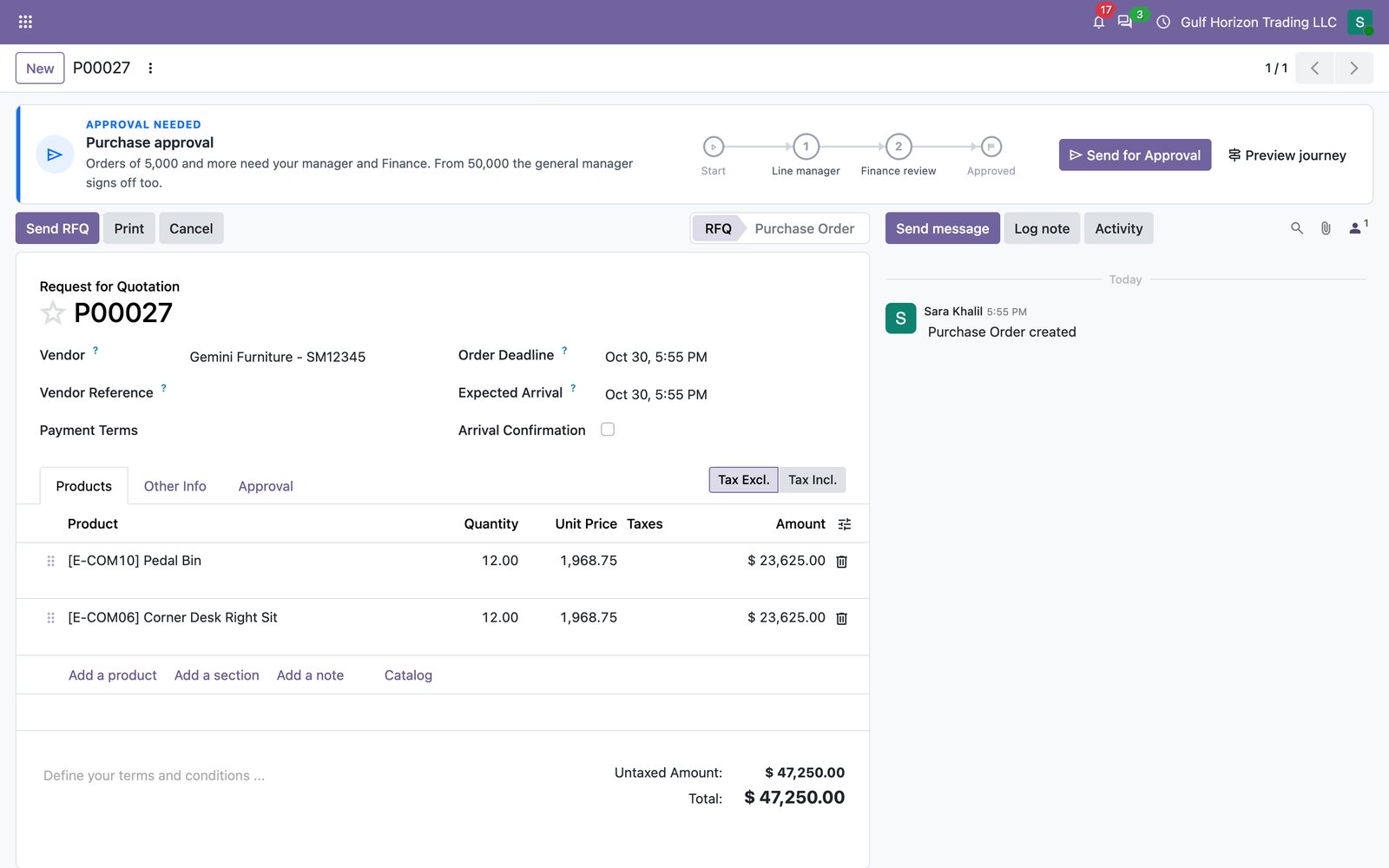
One button on the record: Send for Approval
A record that matches the trigger shows the approval bar above the form. The held-back buttons are gone, and the requester sees the steps ahead before sending. Sending snapshots the route, so later edits to the workflow never change a request in progress.
- ✓Preview the journey before sending
- ✓Required fields are checked first and highlighted on the form
- ✓Records that do not match the trigger are never touched
Approver
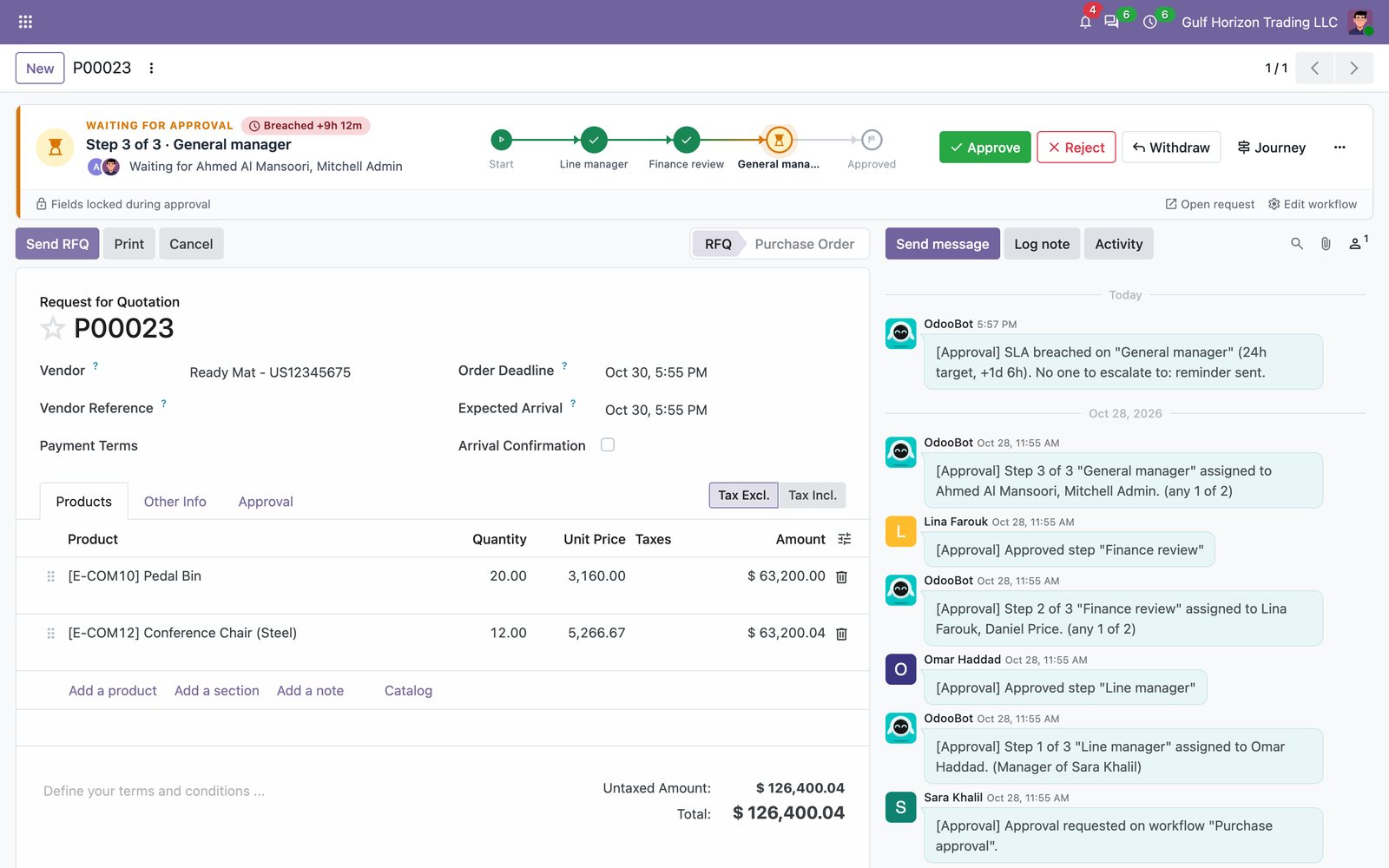
Approve or reject right on the record
Approvers see the status, the SLA and the whole flow at a glance, and decide with one click. Rejecting asks for a reason, picked from your list or typed. When the last step is approved, the held-back buttons come back.
- ✓Approve, Reject, Withdraw and Journey buttons where the work happens
- ✓Transfer, add an approver or reassign when the step allows it
- ✓The record is locked while it is pending, or the request restarts when it is edited (your choice)

Everyone
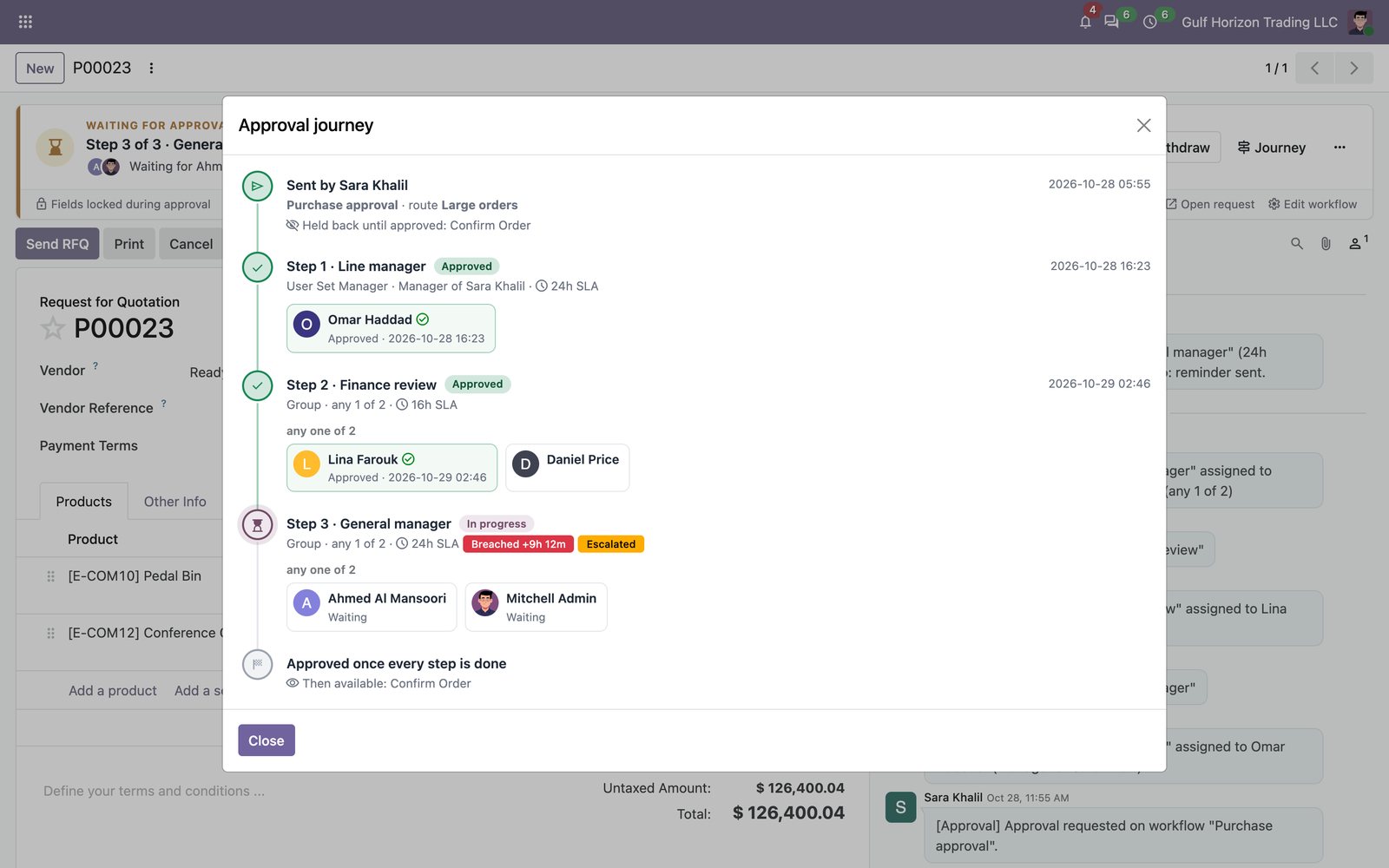
Every request tells its own story
The journey shows who approved what and when, who is still pending, and what happens next. The Approval tab on the record keeps the full summary, with response times, and every event is logged in the chatter.
- ✓Timeline with decisions, comments, SLA badges and the step still to come
- ✓Response time per approver, and SLA met or breached per step
- ✓Delegations, transfers and escalations are shown as such

Approver
A clear queue for every approver
The To Approve inbox lists what waits for you, grouped by document type, with the SLA status. A bell in the top bar brings new requests to you, and approvers can also decide straight from the email.
- ✓Inbox with SLA badges: on track, at risk, breached
- ✓Approval bell with its own notifications, separate from activities
- ✓Approve or reject from the email with secure one-time links (per step)


Everyone
Approval status right in your lists
Every list of a gated model gets an Approval column and the next approver, with filters for records waiting for approval. Administrators see every request across all apps in one place.
- ✓Approval badge and next approver on the standard list views
- ✓Filters: waiting for my approval, needs approval, in approval, approved, rejected
- ✓All requests, with SLA and current step, in one list


Manager
Dashboards that show where approvals get stuck
A personal dashboard for each approver and a company dashboard for managers: volumes, outcomes, approval rate, time to decision, SLA compliance, backlog aging and step bottlenecks, for 7, 30 or 90 days.
- ✓My Approvals: my queue, my decisions and my response time against the team
- ✓Approval Analytics: trends, outcome mix, backlog aging and slowest steps
- ✓Pivot and graph reports on requests, steps and approvers


Controls auditors ask for
No self-approval
The requester cannot approve their own request.
Approval follows the values
An approval is valid for the fields the trigger looks at; if they change, a new approval is needed.
Edits during approval
Either lock the record, restart the request, or keep it going on the edited values.
Approve once
Optionally, someone who approved an earlier step counts for later steps too.
Fallback approver
Requests can still be sent when no step has an eligible approver.
Stage gates
Going back to a chosen stage voids the approval, for document lifecycles.
Every decision, measurable
Pivot and graph reports on requests, steps and approvers: time to decision, SLA breaches and outcomes by workflow and route.

Two simple roles
| Role | Can |
|---|---|
| User | Every internal user: request approvals, approve what is assigned to them, see their own dashboard and requests. |
| Administrator | Configure workflows, approver groups and delegations; see every request and the company dashboard. |
Requests are visible to the requester and to
anyone who is or was an approver. Decisions lock the request to prevent double approvals.
Your first workflow in four steps
Install
Install Flexible Approvals; every internal user can request approvals right away.
Set up approvers
Create approver groups and set each user’s approval manager.
Create a workflow
Pick the model, write the trigger filter and the buttons to hold back.
Design and activate
Add routes and steps on the designer, test the workflow, then activate it.
Built the Odoo way
- ✓Odoo 20 Community and Enterprise; depends only on
mailandbus. - ✓Buttons are held back by hooks installed at runtime (the technique Odoo Studio approvals use), so they apply to every caller, not only the form.
- ✓The approval bar and the Approval tab are added without changing your models; the tab is a generated view extension.
- ✓Workflows are versioned: pending requests keep their route, and Update Pending Records moves them to a new version when you choose.
- ✓SLA escalation runs every 15 minutes, once per step.
- ✓Approver groups can have different members per company.
- ✓Ships with automated tests and browser tours.
Need help designing your approval policy?
Custom approver types, integrations or a guided rollout across your apps: we are happy to help.
www.appsgate.ae




Reviews
There are no reviews yet.