

Description
Advance Payment Allocation
Receive or pay several amounts in one voucher, then settle invoices and bills from a
full-screen allocation popup: auto allocate oldest first, type amounts by hand, split one
invoice across several payments and write off small differences. Allocate existing payments
and credit notes too, straight from the payments list.
Customers & Vendors
Auto & manual allocation
Depends only on Invoicing
OPL-1
Every way money meets an invoice, in one place
Bulk receipts & payments
One voucher, several payment lines: bank transfer, cash, card. Confirm creates and posts one standard Odoo payment per line.
Invoice-wise auto allocation
Tick the invoices, click Auto Allocate: payments are spread oldest due date first, with a live difference badge.
Manual allocation & split
Type any amount per invoice, or open Split to choose exactly which payments fund it. Amounts can never exceed what is due or available.
Existing payments & credits
Settle invoices with payments already posted, credit notes, opening balances and other open credits of the partner.
Allocate from the payments list
Select payments, click Allocate, reconcile in one step. Every payment shows its allocated and unallocated amount and status.
Safe unreconcile
Unreconcile removes exactly what the voucher reconciled and cancels its write-offs. Other reconciliations are never touched.
From money received to invoices paid in six steps
Voucher
Pick the customer and enter what was received, line by line.
Allocate
Open the popup and see every open invoice of the customer.
Auto or manual
Auto Allocate, type amounts, Split, or write off a small rest.
Save
Allocations are stored on the voucher and reserved for it.
Confirm
Payments are created, posted and reconciled with the invoices.
Paid
Invoices are paid; anything unallocated stays open on the payment.
Record everything the customer paid, in one voucher
Four new menus sit next to the standard ones: Bulk Receipts and Receipt Allocations under
Customers, Bulk Payments and Payment Allocations under Vendors. Each voucher gets
its own number and shows its total, allocated and unallocated amounts and its status.

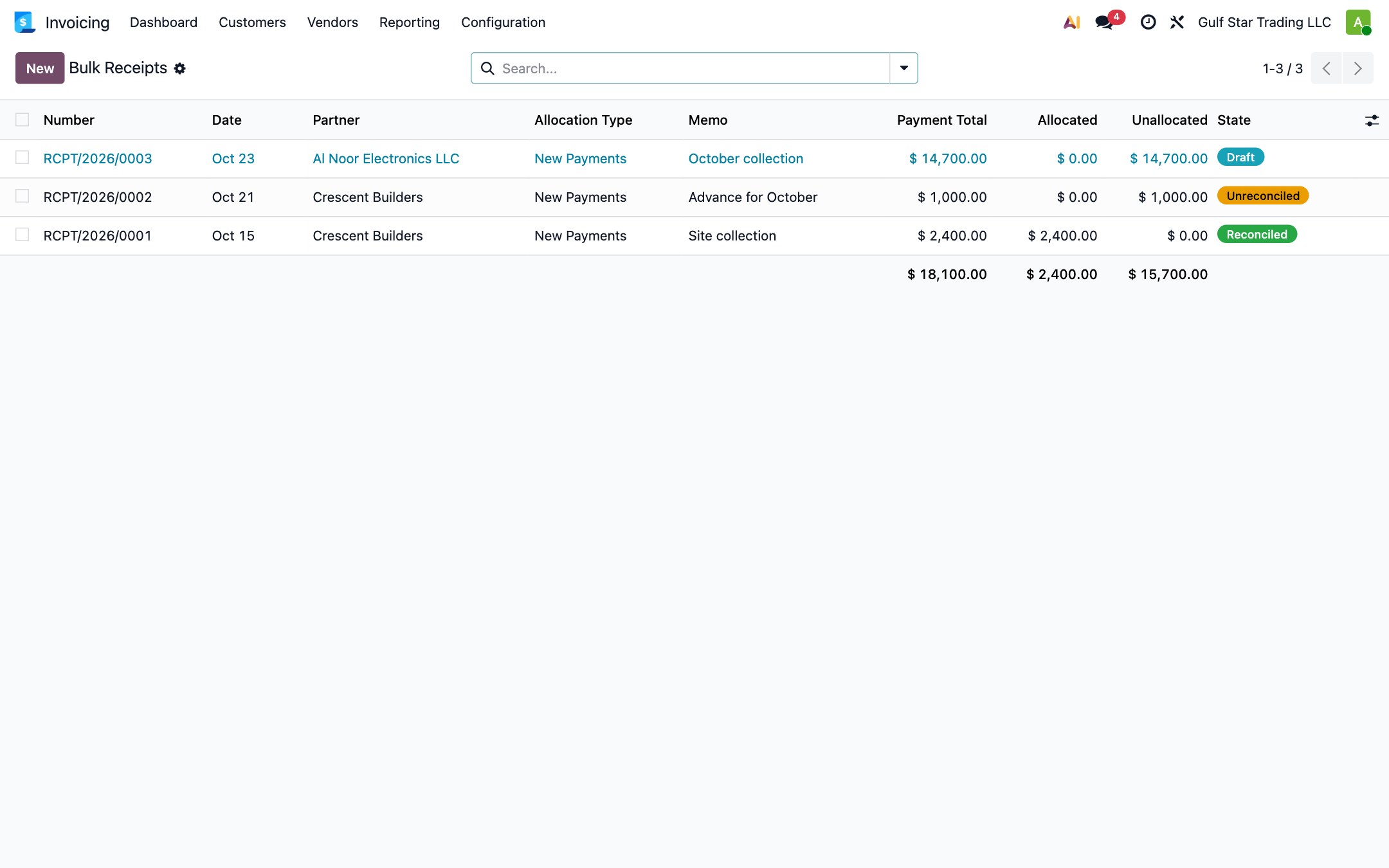
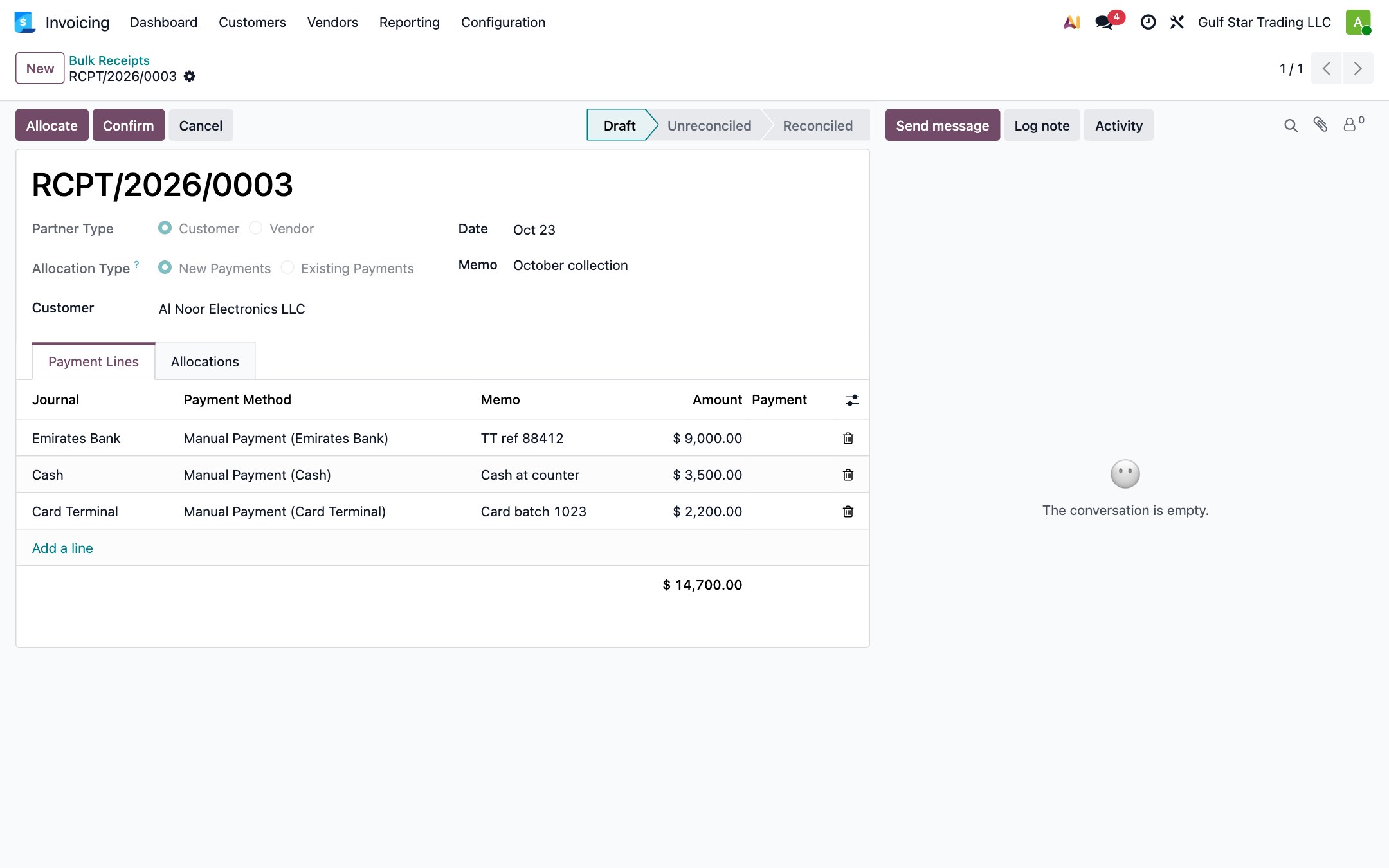
- Choose Customer or Vendor and the partner.
- Add one line per amount received: journal, payment method, amount and a memo such as a transfer reference.
- The payment method follows the journal automatically.
- No payment is created yet: the voucher stays in Draft until you confirm it.
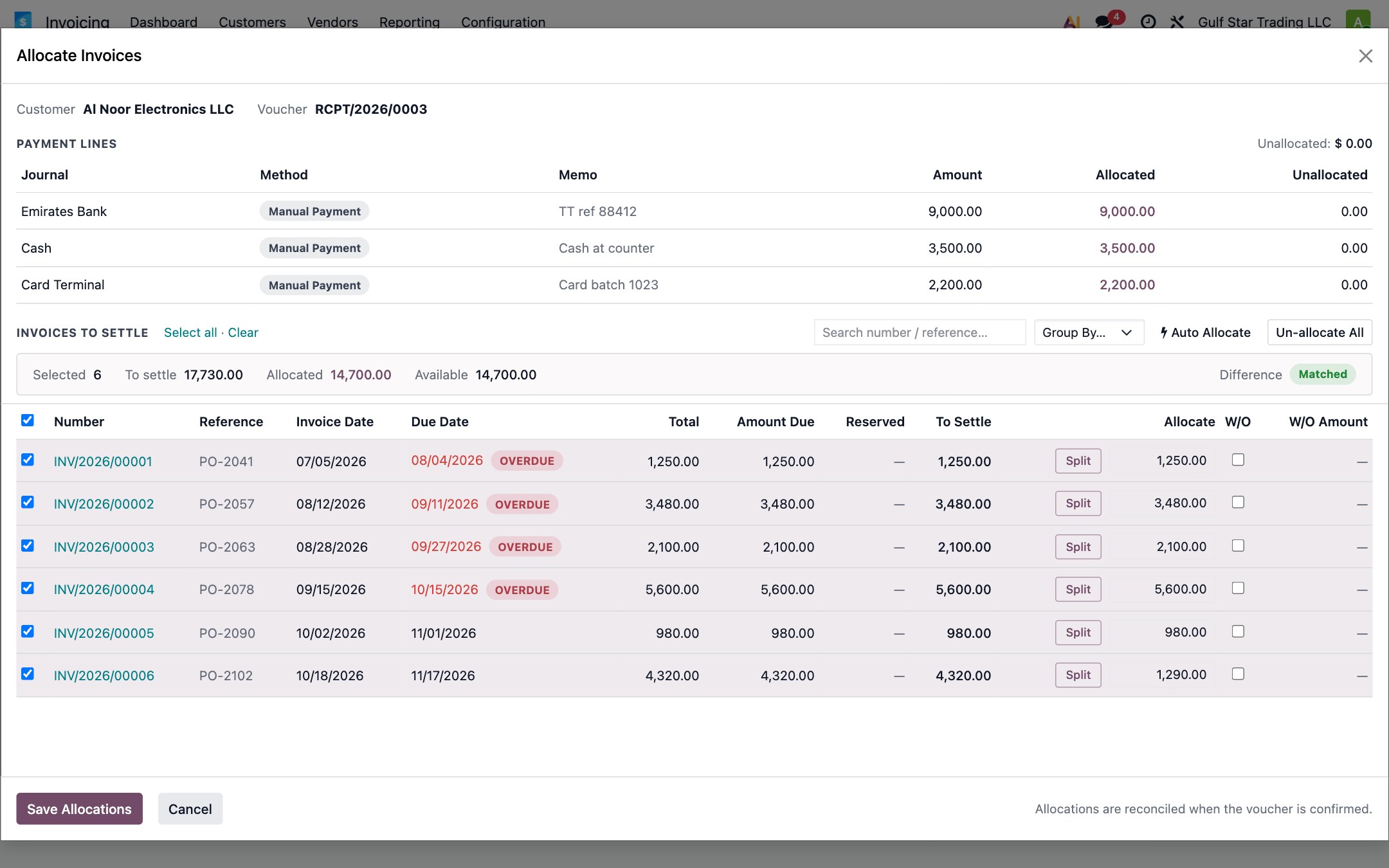
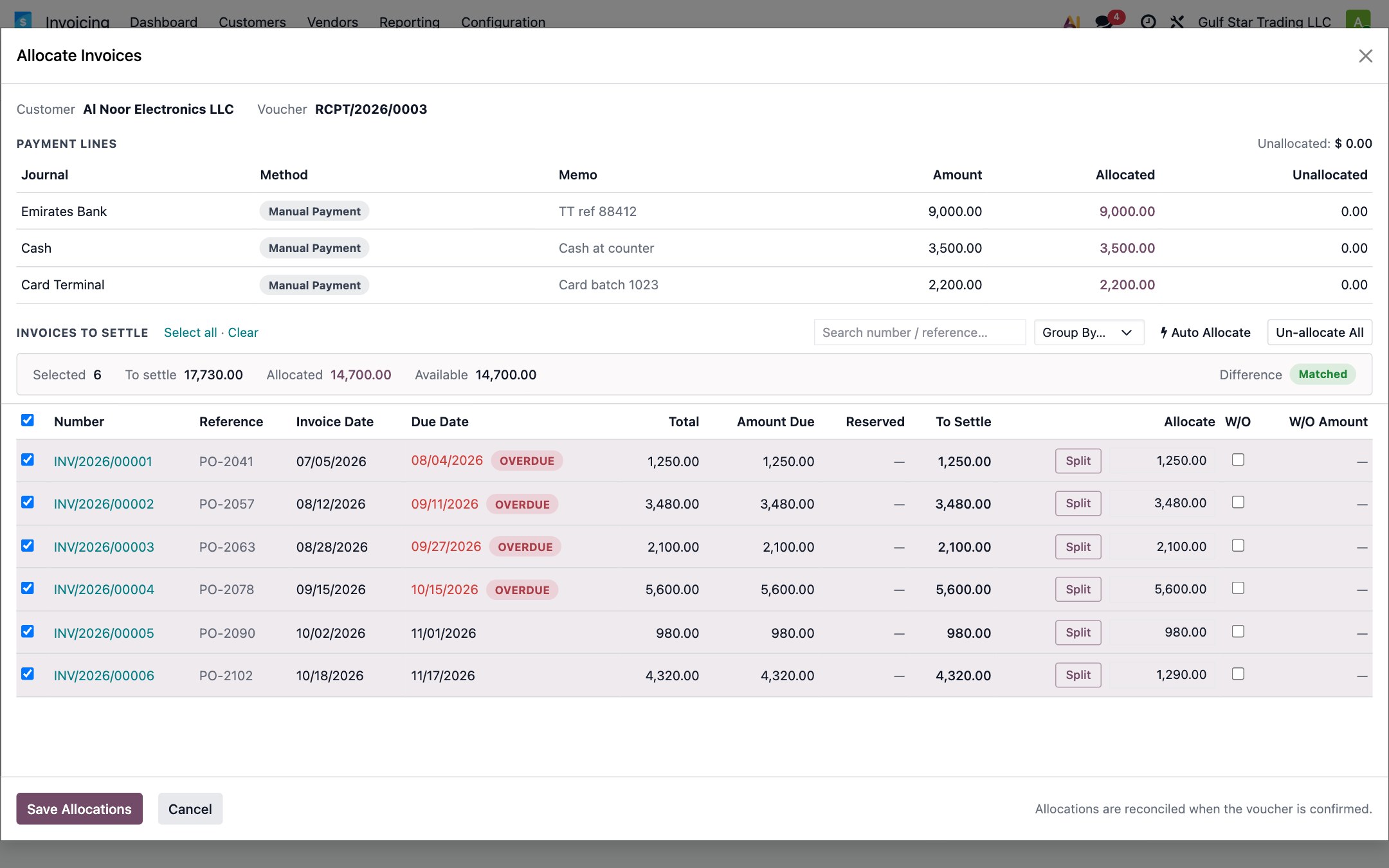
Auto allocate oldest first, in one click
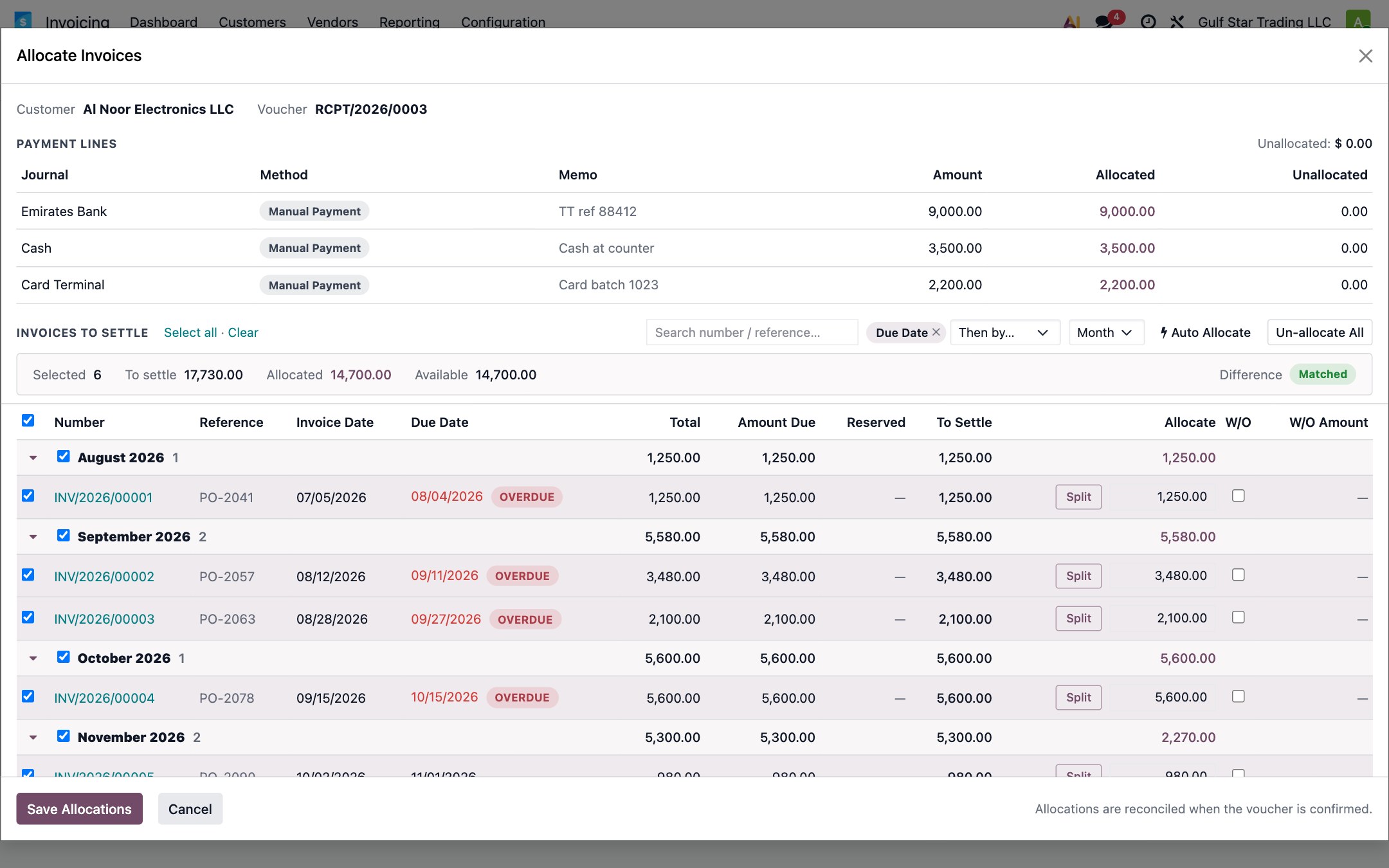
Click Allocate. The full-screen popup lists the payment lines on top and every open invoice of the
customer below, sorted by due date, with overdue invoices flagged. Tick invoices (or Select all) and
press Auto Allocate: the payment lines are spread over the ticked invoices, oldest due date first.
The bar shows what is selected, allocated and available, and the Difference badge turns green when
everything is used.
Search and multi-level group by
Customers with hundreds of invoices stay manageable: search by number or reference and group by invoice
date, due date or reference, by day, week or month, with one checkbox to select a whole group and totals
per group.
You decide which payment pays which invoice
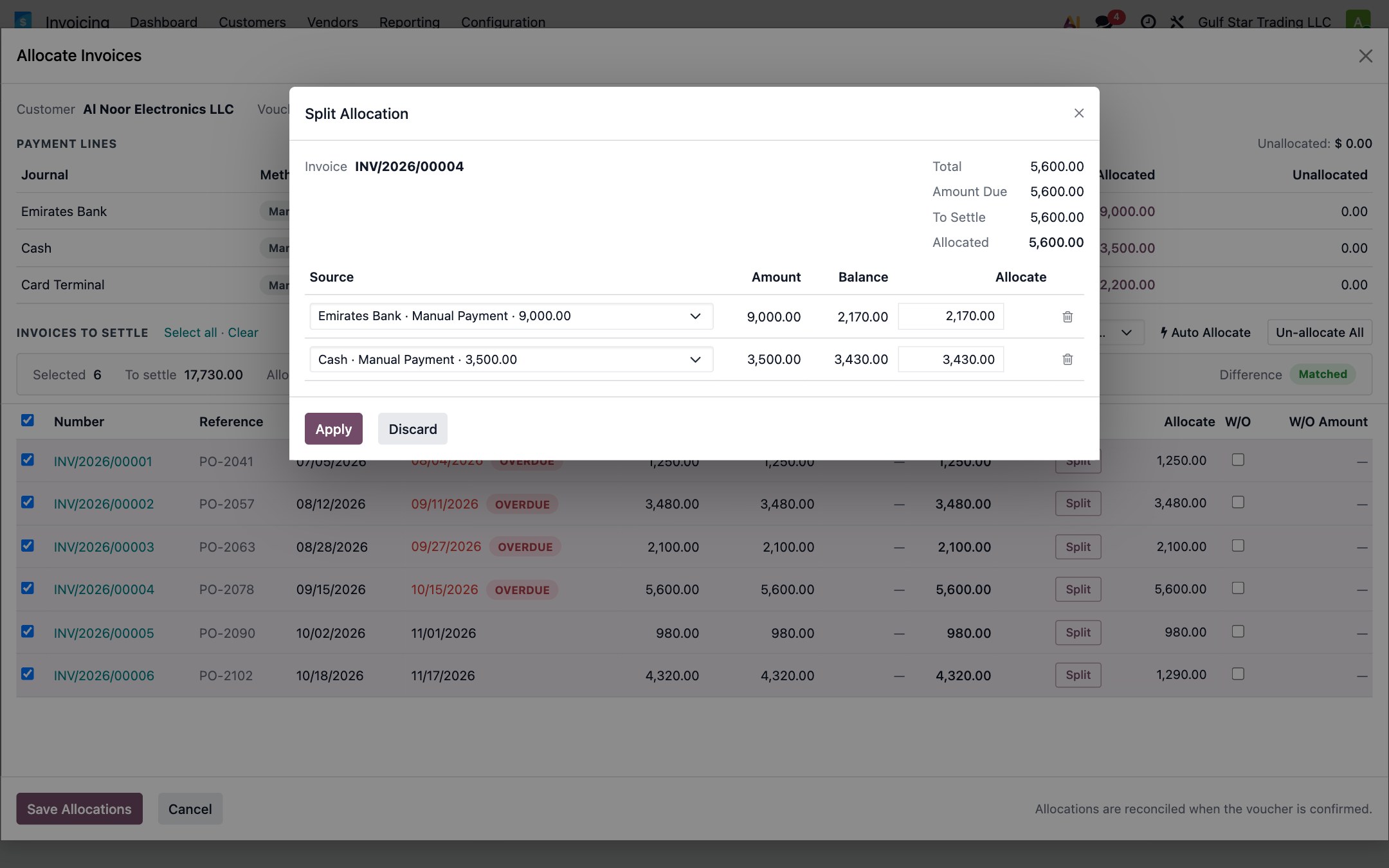
Split one invoice
Split opens the sources funding one invoice. Change the payment of a line, adjust its amount or add
another payment. Each line shows the balance still free on that payment, so a payment can never be used twice.
Here a 5,600.00 invoice is paid 2,170.00 by bank transfer and 3,430.00 in cash.
Type any amount
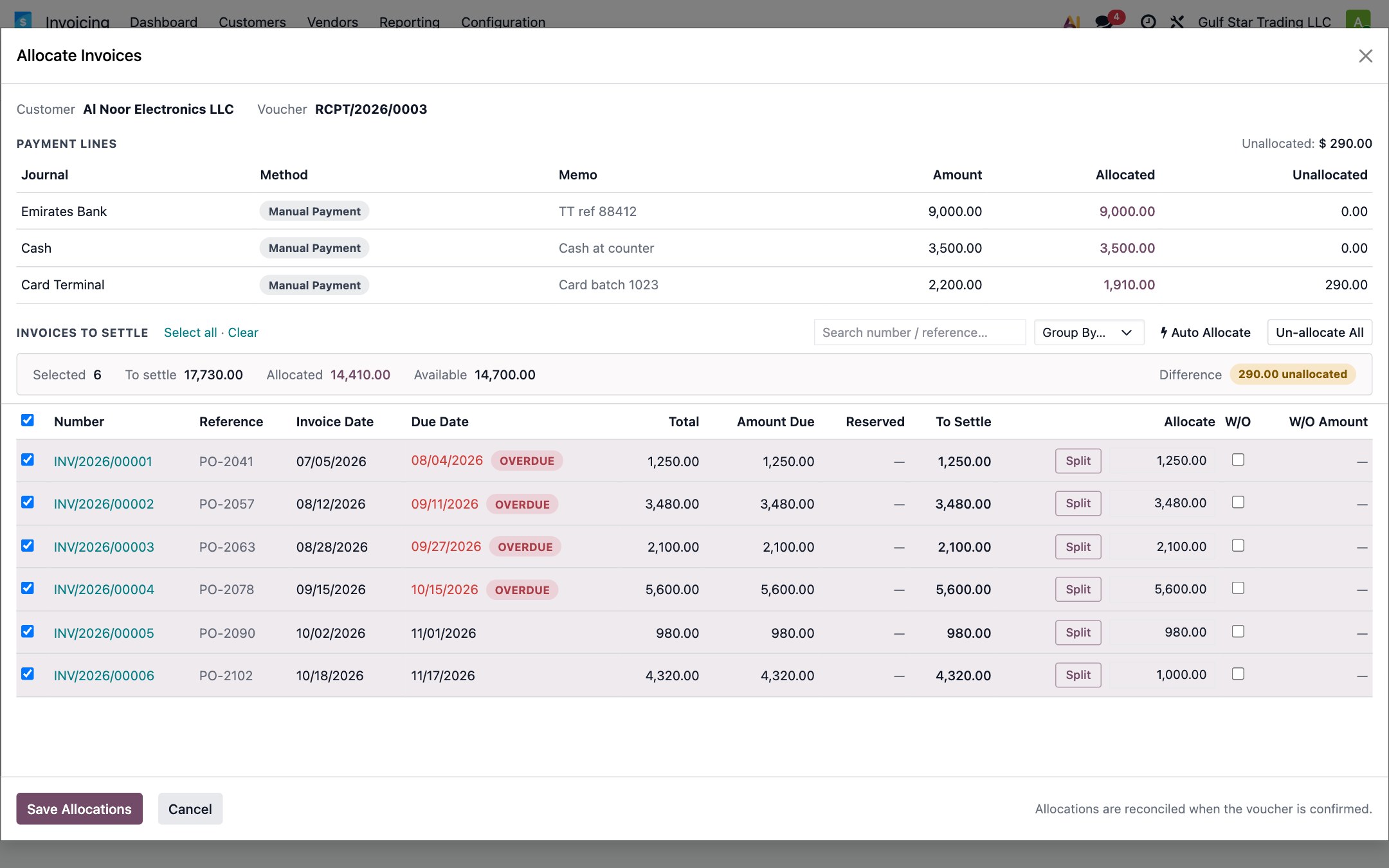
Type the amount to pay in the Allocate column. It is capped by what the invoice still owes and by what
the payments have left. Whatever you leave over is shown as unallocated and stays open on the payment
for later.
Only 1,000.00 is paid on the last invoice: 290.00 remains unallocated, in amber.
Payments created, posted and reconciled together
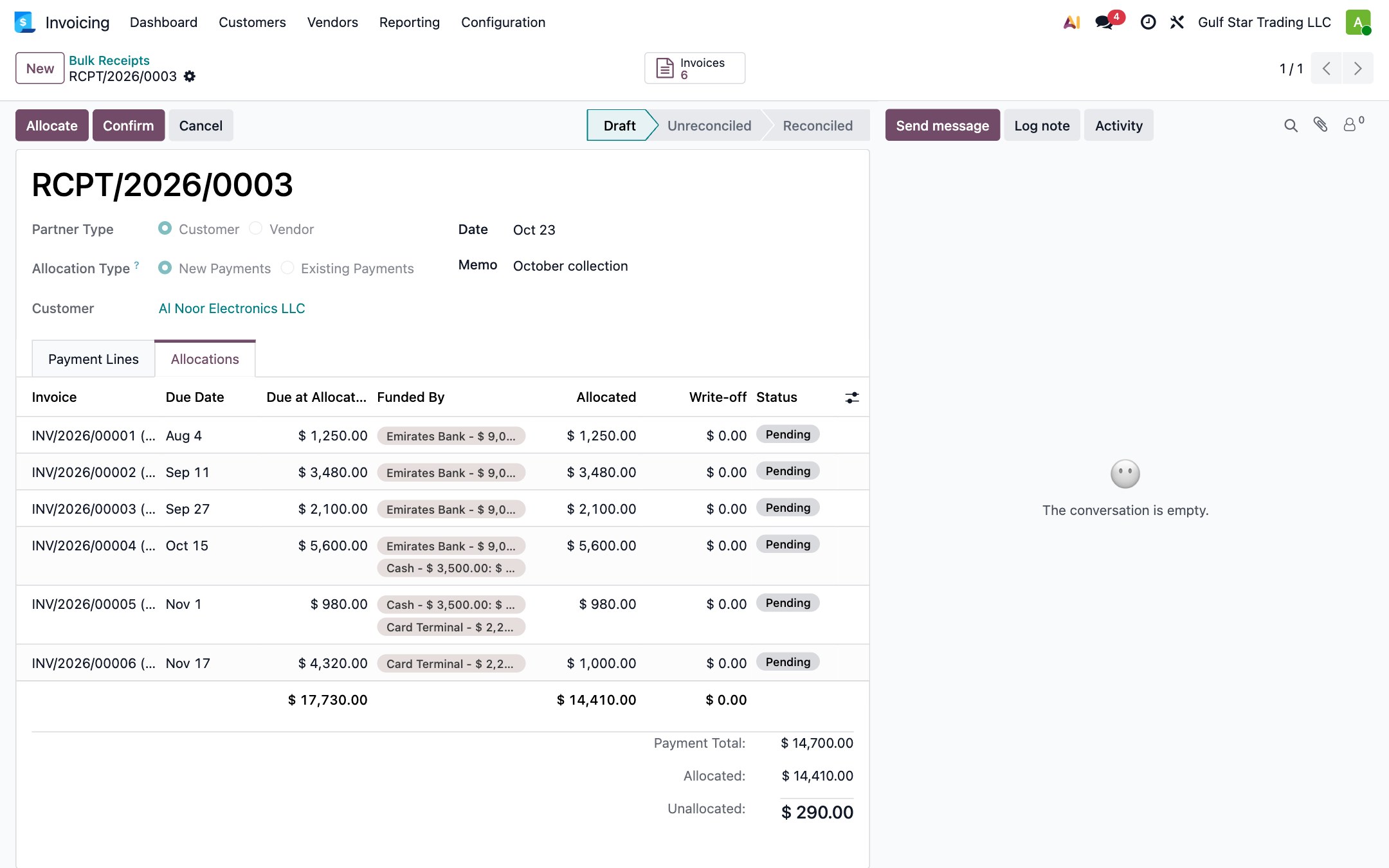
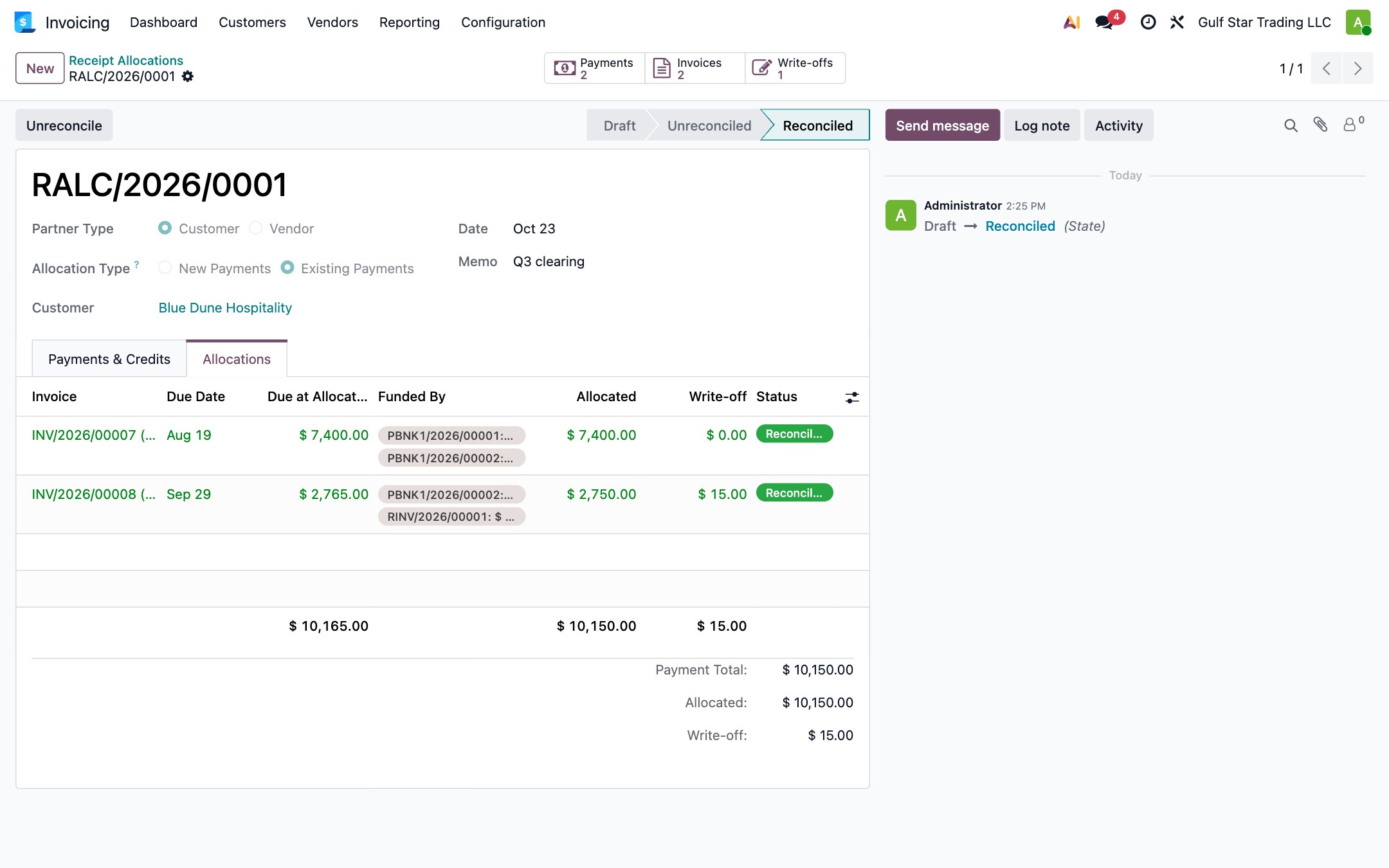
Save Allocations brings you back to the voucher. The Allocations tab lists every invoice with the
payment lines funding it. Confirm creates one standard payment per line, posts it and reconciles each
invoice for exactly its allocated amount. The voucher becomes Reconciled with smart buttons to its
payments and invoices.

- The invoice shows the standard Paid ribbon and payment line.
- Nothing custom on the invoice: reports, ageing and follow-ups keep working as usual.
- Confirm without allocations? The voucher goes to Unreconciled; allocate its payments any time later.
- Unreconcile reverses only this voucher’s reconciliations and reopens it for a new allocation.

Clear old payments, credit notes and small differences
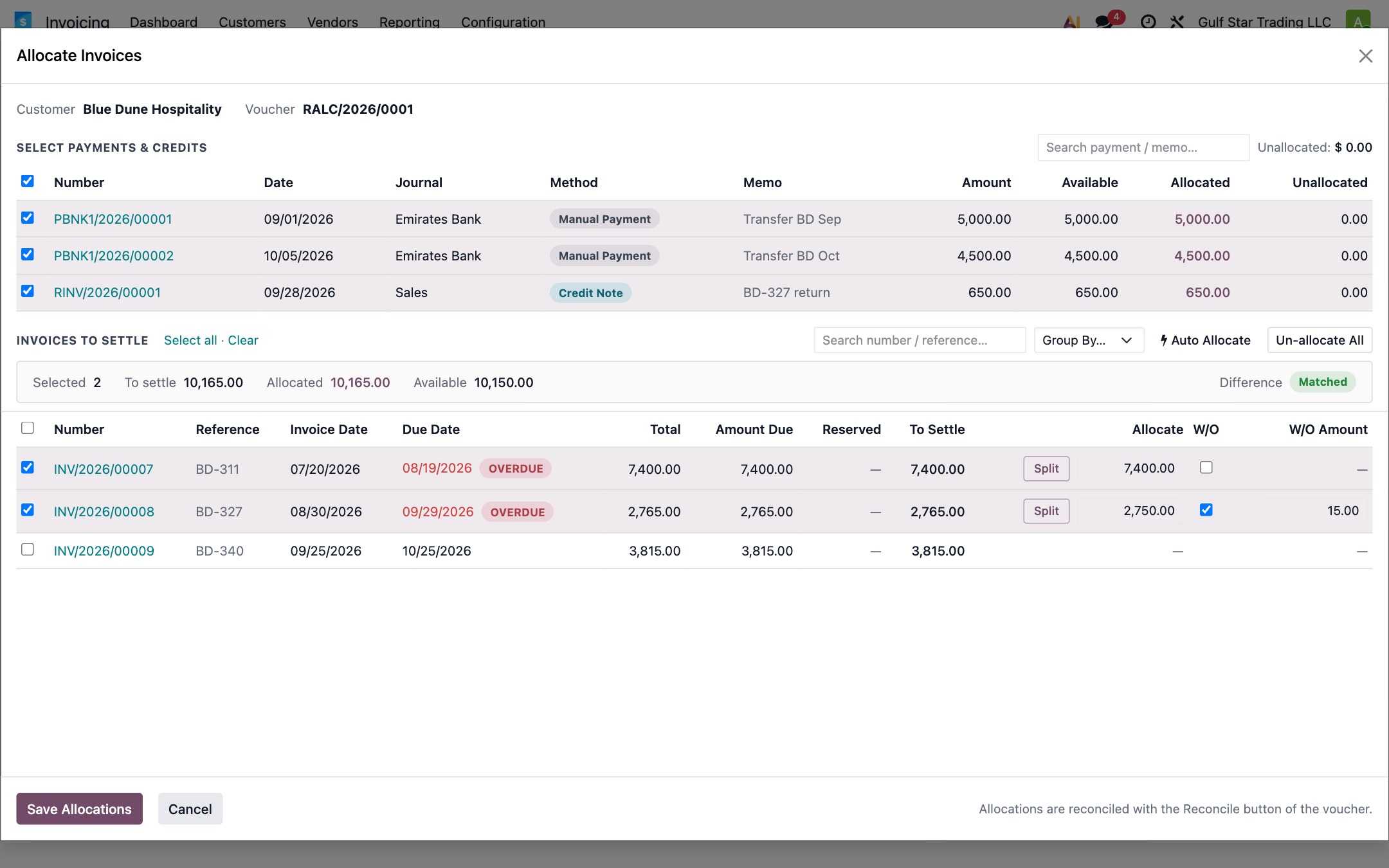
A Receipt Allocation works with money already in the books. The popup lists every open payment and
credit of the customer (credit notes, opening balances, manual entries). Tick the ones to use, tick the
invoices, Auto Allocate, and close a small rest with W/O.
Payments
Posted customer receipts or vendor payments with an open balance.
Credits
Credit notes, opening balances and manual entries on the partner’s receivable or payable.
Write-off
Posts an entry to your write-off account, within the maximum you allow per invoice.
See what is left on every payment, allocate it in seconds
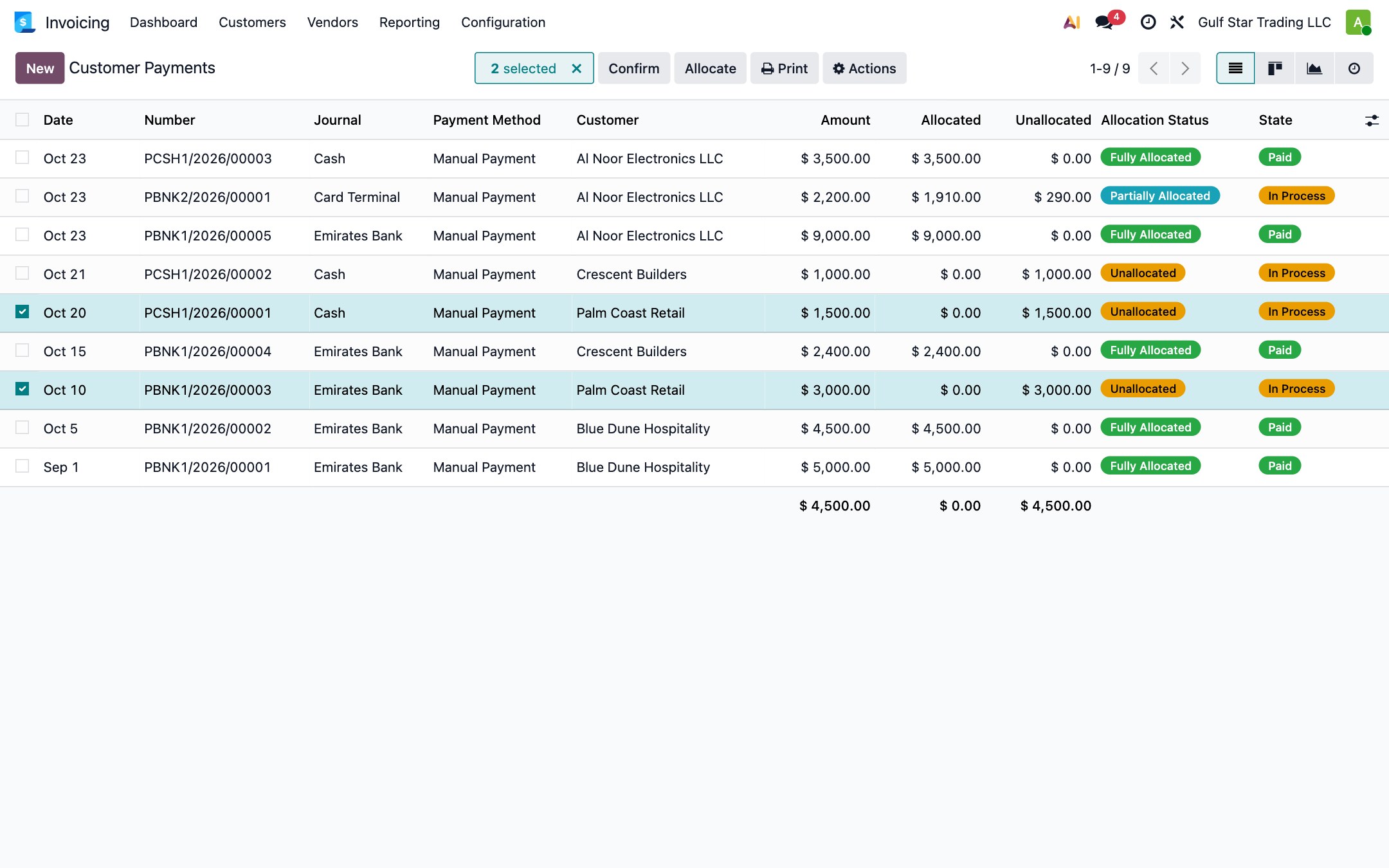
The payments list gains Allocated, Unallocated and Allocation Status columns, with
filters for unallocated, partially and fully allocated payments. Select payments of one partner and click
Allocate.

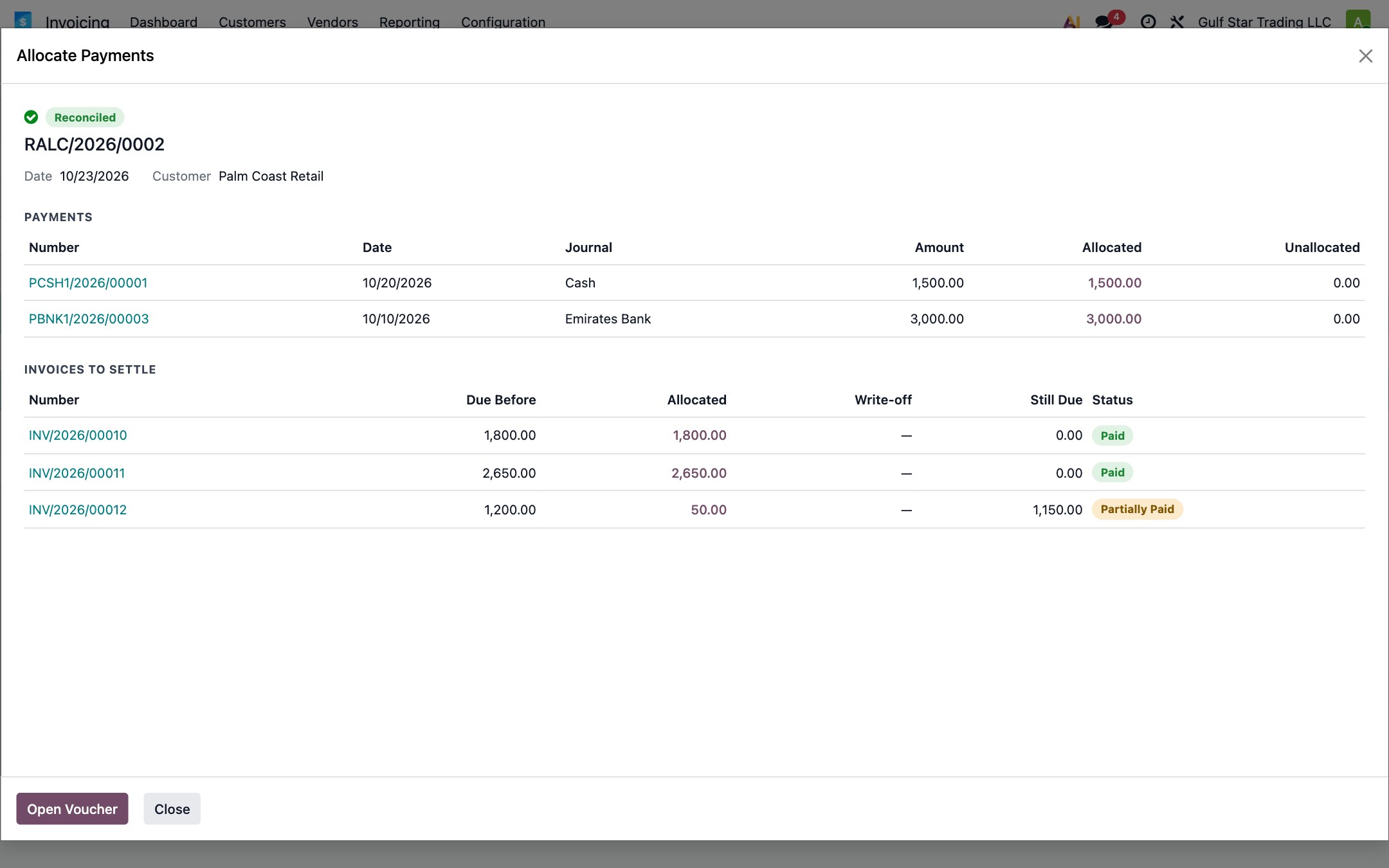
Same popup, then a summary
The selected payments are the pool. Reconcile creates the allocation voucher, reconciles it right away
and shows what each payment paid and what each invoice still owes.

The same flow for paying bills
Bulk Payments pay several bills of a vendor at once, and Payment Allocations settle bills with
existing vendor payments and vendor credit notes. Everything above works the same way.

Your books stay right, whatever the team clicks
| Rule | What it means |
|---|---|
| Reserved amounts | Money allocated on a voucher not yet reconciled is reserved: other vouchers see it in the Reserved column and cannot promise it twice. |
| Checked on the server | Every amount is checked again against the database when saving and reconciling, never trusted from the browser. |
| Exact reconciliation | Each split reconciles exactly its amount; the reconciliations created are remembered on the voucher. |
| Protected | A reconciliation made by a voucher cannot be removed from the invoice; use Unreconcile on the voucher so both stay in sync. |
| Clean cancel | Cancelling a bulk voucher cancels the payments it created, and refuses if they are used elsewhere. |
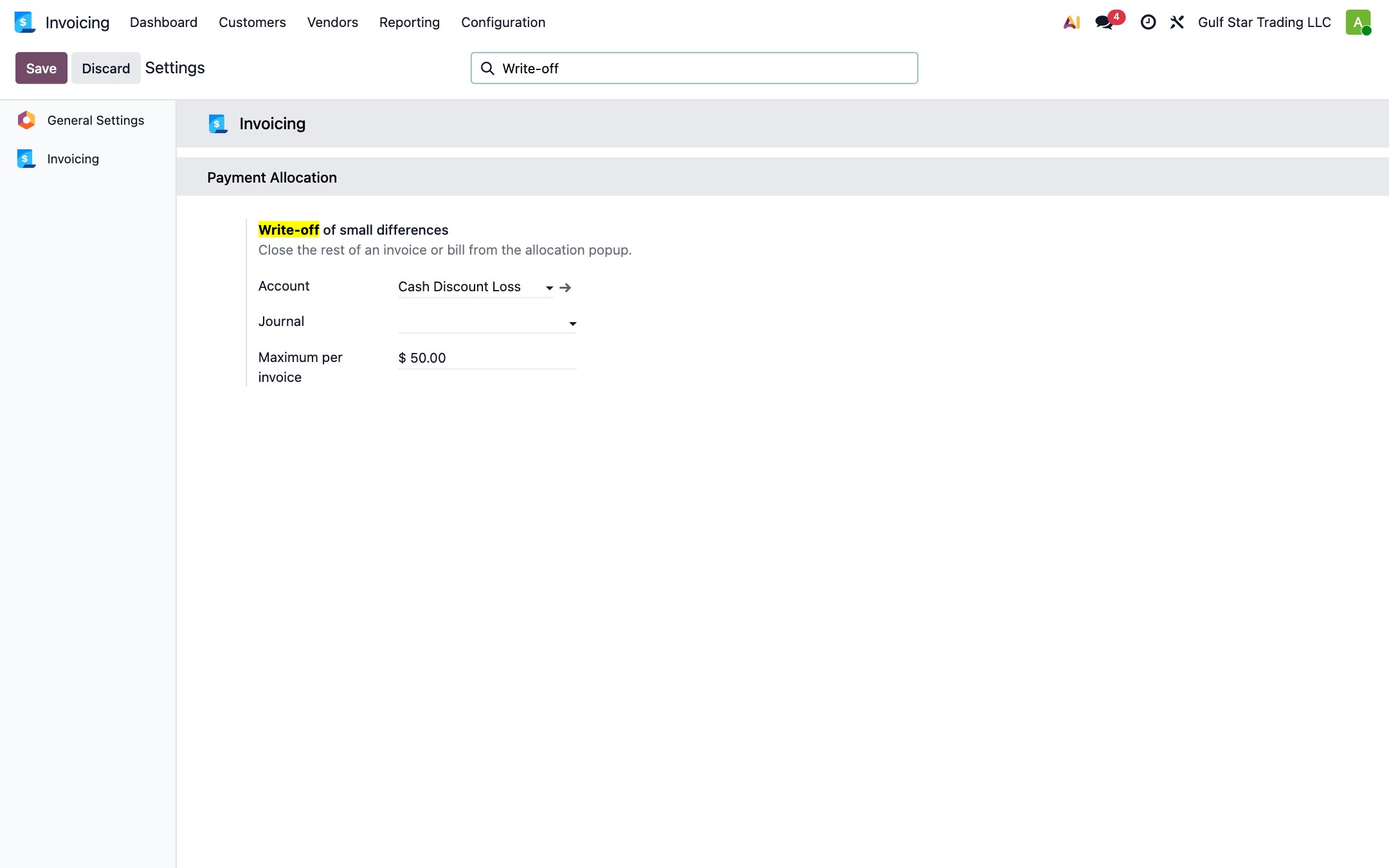
One optional setting
Under Invoicing › Configuration › Settings › Payment Allocation, choose the
write-off account, its journal and the maximum write-off per invoice. Without an account, the write-off
columns simply stay hidden.
Your first bulk receipt in four steps
Install
Install the app; it only needs Invoicing. Optionally set the write-off account.
New bulk receipt
Customers › Bulk Receipts › New: customer and payment lines.
Allocate
Tick invoices, Auto Allocate or type amounts, then Save Allocations.
Confirm
Payments are created, posted and the invoices are paid.
Technical notes
- Odoo 20 Community and Enterprise; depends only on
account. - Uses standard
account.paymentrecords and Odoo’s own reconciliation engine; no change to invoices. - Payments created by a voucher always get a journal entry, also when the payment method has no outstanding account (Enterprise default).
- Amounts in company currency; payment lines accept journals in the company currency.
- Multi-company: vouchers are restricted to the user’s allowed companies.
- Ships with automated tests, including browser tours:
--test-tags /ag_advance_payment_allocation.
www.appsgate.ae




Reviews
There are no reviews yet.